# Attributes of Decorated Tests
You can set attributes for decorated tests using different decorator classes
such as [Flags class] to set test `flags`, [Name class] to set test `name`, [Examples class]
to set `examples` etc.
For example,
```python
@TestScenario
@Name("check add two numbers")
@Flags(TE)
@Examples("x y result", [
(1,1,2),
])
def test(self, x, y, result):
assert sum([x,y]) == result
```
When creating a test based on a decorated test, the attributes of the test get preserved unless
you override them explicitly.
For example,
```python
# execute `test()` using a Scenario that will have
# the same flags, name, and examples attributes
Scenario(test=test)(x=1, y=1, result=2)
```
However, if you call a decorated test within a test of the same type,
then the attributes of the parent test are not changed in any way as
the test is executed just like a function.
```python
with Scenario("my test"):
# calling decorated test here will have no effect on
# attributes of `my test` scenario
test(x=1, y=1, result=2)
```
## Overriding Attributes
You can override any attributes of a decorated test by explicitly creating a test
that uses it as a base using the `test` parameter, or the `run` parameter if there is no need to pass
any arguments to the test, and define any new values of the attributes as needed.
For example, we can override the `name` and `flags` attributes of a decorated
`test()` while not modifying `examples` or any other attributes as follows:
```python
Scenario(name="my new name", flags=PAUSE_BEFORE, test=test)(x=1, y=1, result=2)
```
> **{% attention %}** The `test` parameter sets the decorated test to be the base
> for the explicitly defined `Scenario`.
If we also want to set custom `examples`, you could do it as follows:
```python
Scenario(name="my new name", flags=PAUSE_BEFORE,
examples=Examples("x y result", [
(1,2,3), (2,2,4)
]), test=test)(x=1, y=1, result=2)
```
Similarly, any other attribute of the scenario can be set. If the same attribute
is set already for the decorated test then the value is overwritten.
## Modifying Attributes
If you don't want to completely override the attributes of the decorated test
then you need to explicitly modify them by accessing the original values of the decorated
test.
Any set attributes of the decorated test can be accessed as the attribute of the
decorated test object. For example,
```python
from testflows.core import *
@TestScenario
@Name("check add two numbers")
@Flags(TE)
@Examples("x y result", [
(1,1,2),
])
def test(self, x, y, result):
assert sum([x,y]) == result
# `name`, `flags` and `examples` attributes can be accessed
# using the corresponding attributes of the test decorator object
print("name:", test.name)
print("flags:", test.flags)
print("examples:\n", test.examples)
```
Use standard [getattr()] function to check if a particular attribute is set and if not
then use the default value.
For example,
```python
Scenario("my new test", flags=Flags(getattr(test, "flags", None)) | PAUSE_BEFORE, test=test)(x=1, y=1, result=2)
```
adds [PAUSE_BEFORE] flag to the initial flags of the decorated test.
> **{% attention %}** Note that you don't want to modify the original attributes
> but instead you should always create a new object based on the initial attribute value.
Here is an example of how to add another example to existing `examples`
```python
Scenario("my new test", examples=Examples(
"x y result",
list(getattr(test, "examples", Examples("", [])).rows) + [
(2,2,4)
]),
test=test)(x=1, y=1, result=2)
```
# Top Level Test
{% testflows %} only allows one top level test to exist in any given test program execution.
Because a [Flow](concepts-and-types.md#Flow-is) of tests can be represented as a rooted [Tree](concepts-and-types.md#Tree-is), a test program
exits on completion of the top level test. Therefore, any code that is defined after the top
level test **will not be executed**.
```python
with Module("module"):
pass
something_else() # will not be executed
```
> **{% attention %}** Top level test can't be an asyncrounous test. See [Async Tests](async-and-parallel-tests.md#Async-Tests).
## Renaming Top Test
Top level test name can be changed using the [--name] command line argument.
```bash
--name name test run name
```
> **{% attention %}** Changing name of the top level test is usually not recommended as you can break any test name patterns
> that are not relative. For example, this can affect [xfails], [ffails], etc.
For example,
> `test.py`
> ```python
from testflows.core import *
with Module("regression"):
with Scenario("my test"):
pass
```
```bash
python3 test.py --name "new top level test name"
```
```bash
Sep 25,2021 8:55:18 ⟥ Module new top level test name
Sep 25,2021 8:55:18 ⟥ Scenario my test
661us ⟥⟤ OK my test, /new top level test name/my test
9ms ⟥⟤ OK new top level test name, /new top level test name
```
## Adding Tags to Top Test
On the command line, tags can be added to [Top Level Test] using [--tag] option.
One or more tags can be specified.
```bash
--tag value [value ...] test run tags
```
For example,
> `test.py`
>```python
from testflows.core import *
with Module("regression"):
with Scenario("my test"):
pass
```
```bash
python3 test.py --tag tag1 tag2
```
```bash
Sep 25,2021 8:56:58 ⟥ Module regression
Tags
tag1
tag2
Sep 25,2021 8:56:58 ⟥ Scenario my test
640us ⟥⟤ OK my test, /regression/my test
9ms ⟥⟤ OK regression, /regression
```
## Adding Attributes to Top Test
Attributes of the [Top Level Test] can be used to associate important
information with your test run. For example, common attributes include
tester name, build number, CI/CD job id, artifacts URL and many others.
> **{% attention %}** These attributes can be used extensively when filtering test runs
> in test results database.
On the command line, attributes can be added to [Top Level Test] using [--attr] option.
One or more attributes can be specified.
```bash
--attr name=value [name=value ...] test run attributes
```
For example,
> `test.py`
>```python
from testflows.core import *
with Module("regression"):
with Scenario("my test"):
pass
```
```bash
python3 top_name.py --attr build=21.10.1 tester="Vitaliy Zakaznikov" job_id=4325432 job_url="https://jobs.server.com/4325432"
```
```bash
Sep 25,2021 9:04:11 ⟥ Module regression
Attributes
build
21.10.1
tester
Vitaliy Zakaznikov
job_id
4325432
job_url
https://jobs.server.com/4325432
Sep 25,2021 9:04:11 ⟥ Scenario my test
781us ⟥⟤ OK my test, /regression/my test
10ms ⟥⟤ OK regression, /regression
```
## Custom Top Test Id
By default [Top Level Test] test id is generated automatically using [UUIDv1]. However,
if needed, you can specify custom id value using [--id] test program option.
> **{% attention %}** Specifying [Top Level Test] id should only be done by advanced
> users as each test run must have a unique id.
In general, the most common use case when you need to specify custom [--id]
is when you need to know [Top Level Test] id before running your test program.
Therefore, you would generate [UUIDv1] externally using for example `uuid` utility
```bash
uuid
```
```bash
52da6a26-1e54-11ec-9d7b-cf20ccc24475
```
and passing the generated value to your test program.
For example, give the following test program
> `test.py`
> ```python
from testflows.core import *
with Test("my test"):
pass
```
if it is executed without [--id] you can check top level test id by looking at [`raw`] output
messages and looking at `test_id` field.
```bash
python3 id.py -o raw
{"message_keyword":"PROTOCOL",...,"test_id":"/8a75f8b2-1e52-11ec-8830-cb614fe11752",...}
...
```
Now if you specify [--id] then you will see that `test_id` field of each message
will contain the new id.
```bash
python3 id.py -o raw --id 112233445566
```
```bash
{"message_keyword":"PROTOCOL",...,"test_id":"/112233445566",...}
...
```
# Test Program Tree
Executing any **{% testflows %}** test program results in a [Tree]. Below is a
diagram that depicts a simple test program execution [Tree].
🔎 **Test Program Tree**
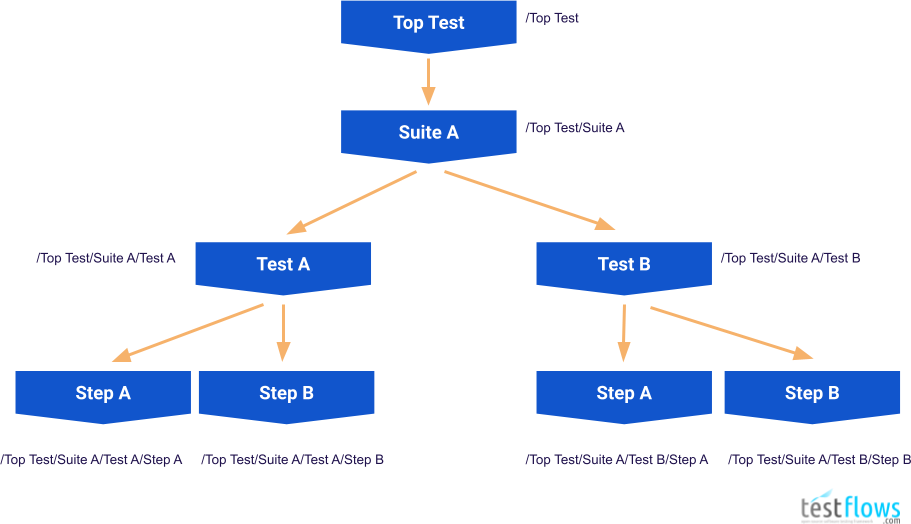 During test program execution, when all tests are executed sequentially,
the [Tree] is traversed in a depth first order.
The order of execution of tests shown is the diagram above is as follows
> * /Top Test
> * /Top Test/Suite A
> * /Top Test/Suite A/Test A/
> * /Top Test/Suite A/Test A/Step A
> * /Top Test/Suite A/Test A/Step B
> * /Top Test/Suite A/Test B/
> * /Top Test/Suite A/Test B/Step A
> * /Top Test/Suite A/Test B/Step B
and this order of execution forms the [Flow] of the test program.
This [Flow] can also be shown graphically as in the diagram below where depth first
order of execution is highlighted by the magenta colored arrows.
🔎 **Test Program Tree Traversal** *(sequential)*
During test program execution, when all tests are executed sequentially,
the [Tree] is traversed in a depth first order.
The order of execution of tests shown is the diagram above is as follows
> * /Top Test
> * /Top Test/Suite A
> * /Top Test/Suite A/Test A/
> * /Top Test/Suite A/Test A/Step A
> * /Top Test/Suite A/Test A/Step B
> * /Top Test/Suite A/Test B/
> * /Top Test/Suite A/Test B/Step A
> * /Top Test/Suite A/Test B/Step B
and this order of execution forms the [Flow] of the test program.
This [Flow] can also be shown graphically as in the diagram below where depth first
order of execution is highlighted by the magenta colored arrows.
🔎 **Test Program Tree Traversal** *(sequential)*
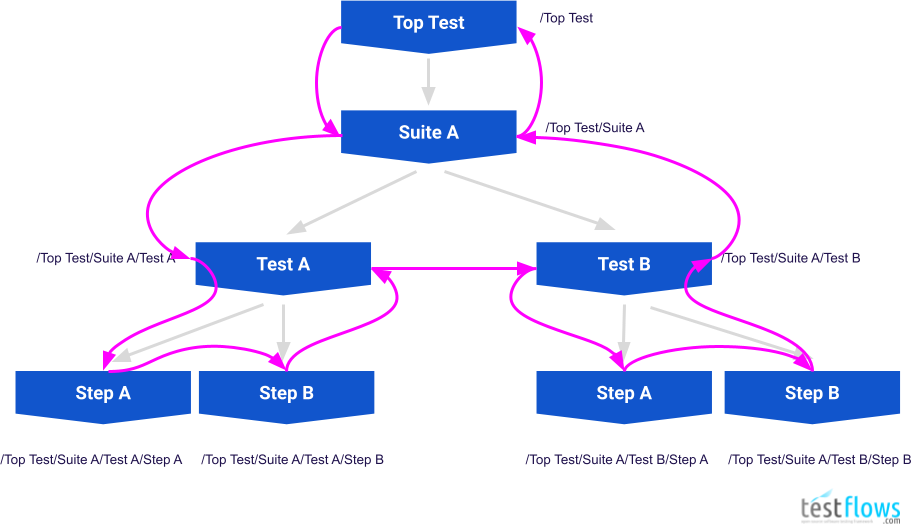 When dealing with test names when [Filtering Tests](command-line-and-filtering.md#Filtering-Tests-By-Name) it is best
to keep the diagram above in mind to help visualize and understand how **{% testflows %}**
works.
When dealing with test names when [Filtering Tests](command-line-and-filtering.md#Filtering-Tests-By-Name) it is best
to keep the diagram above in mind to help visualize and understand how **{% testflows %}**
works.